



- Shop
- About us
- DSLocate App
- Your industry
- FAQ
- Contact
-
Monitoring for
 sales representatives
 service technicians
 delivery drivers
 vehicle rental companies
 distributors
 construction machinery
 forklifts
 waste containers
 agricultural machinery
 trailers
 refrigerated vehicles
 municipal vehicles
 trucks
 buses
buses boats
boats people and objects
 theft protection
 mobile objects
Guide series | DSLocate – interesting and useful features you may not have known about | #4 Logbook

Managing a vehicle fleet is no small undertaking. Service schedules, technical condition checks, route monitoring — these are just some of the responsibilities that fall on the shoulders of transport and logistics company owners. Fortunately, DSLocate is here to help — a modern application that makes all of these tasks considerably easier.
Of course, the primary function of DSLocate is real-time vehicle tracking. But that is just the tip of the iceberg! The application offers many other, lesser-known but enormously useful features that can significantly streamline fleet management. In this series of blog articles, we will take a closer look at the untapped potential that lies within DS Locate.
In today's article, we will focus on the Mileage Log Report feature, which is sure to be a useful tool in your day-to-day work.
The mileage log report — a comprehensive overview of routes and vehicle mileage
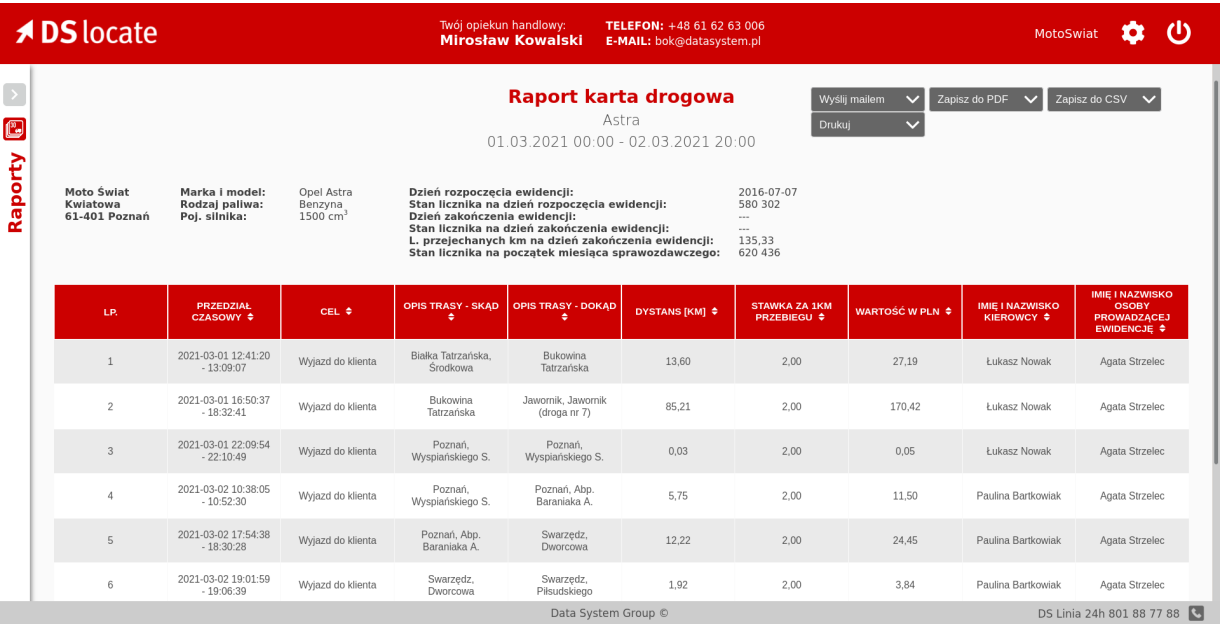
The mileage log report is a detailed summary of all routes completed by a selected vehicle within a specified time period. DS Locate automatically records information relating to each journey, such as location, date and time of departure and arrival, distance covered, and the driver at the wheel. This tool not only gives you a precise picture of where and when a vehicle was in use, but also allows you to maintain a mileage log, which is essential for tax purposes — particularly when reclaiming VAT.
The mileage log report also includes data on the journey purpose and rate per kilometre, enabling automatic calculation of the route's value in Polish zloty. In addition, the report calculates statistics for the entire recording period, including the total number of kilometres travelled and the combined value of all routes covered.
Furthermore, DS Locate allows the automatic sending of generated reports to the relevant individuals — for example, drivers or the accounts department — which greatly simplifies and speeds up fleet documentation management.
With this feature, you have full control over the costs and operational efficiency of your fleet, which translates into better planning and resource optimisation. In upcoming articles in our series, we will look at other advanced DS Locate features that can streamline your fleet management even further.
But how does it actually work?
To make full use of the mileage log report's capabilities, it is worth entering some data into the application first. To do so, open the Administration Panel by clicking the white cog icon in the top right-hand corner of the screen. Although entering this information is not compulsory — the mileage log report will be generated without it — adding these details will result in a more complete and accurate data picture.
To enhance the mileage log report, you can enter the following data:
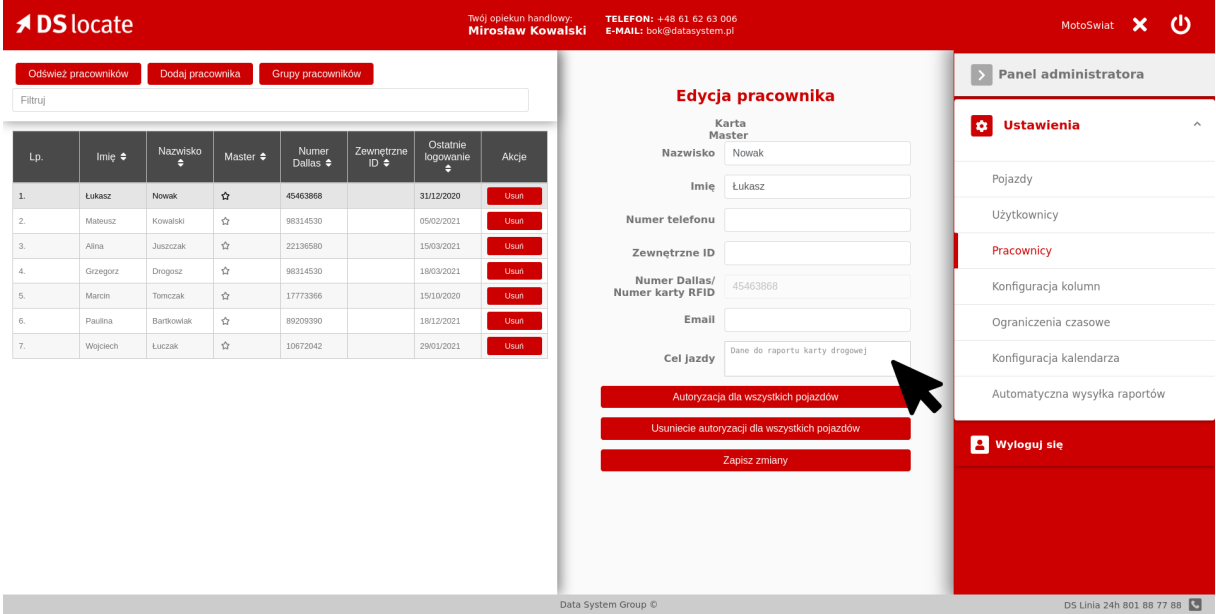
Journey purpose: You can assign an individual journey purpose to each driver. To do so, go to the Employees tab. On the left-hand side of the screen you will find a table containing all RFID cards or Dallas keys assigned within the application.
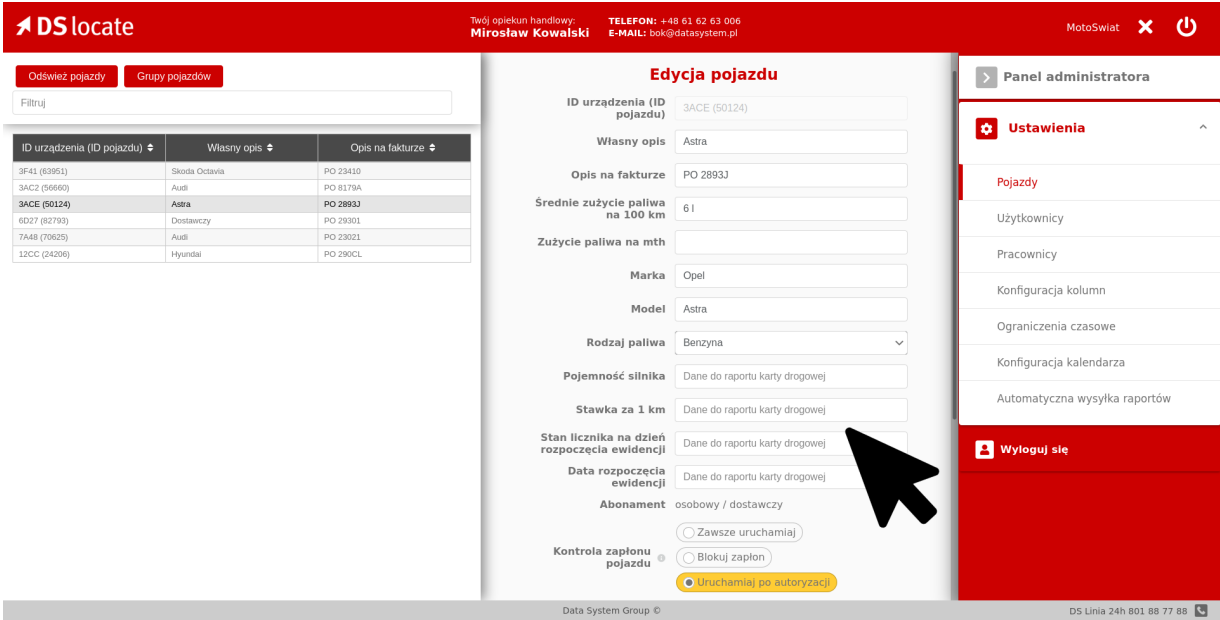
Vehicle information: For each vehicle, you can enter detailed data such as fuel type, engine capacity, rate per kilometre, odometer reading on the day the log begins, and the log start date. To do this, select the Vehicles tab. On the left-hand side of the screen you will find a table of vehicles. Select the vehicle you are interested in and fill in the fields marked as Mileage log report data.
Entering this information will result in more accurate and more valuable reports, making fleet management easier.
Generating the report
Once you have filled in the driver and vehicle information, you can proceed to generate the report. To do so, close the Administration Panel by clicking the white cross in the top right-hand corner of the screen. Then, from the panel in the bottom left-hand corner, select the Reports tab. You can now generate the mileage log report, containing all the information you entered previously.
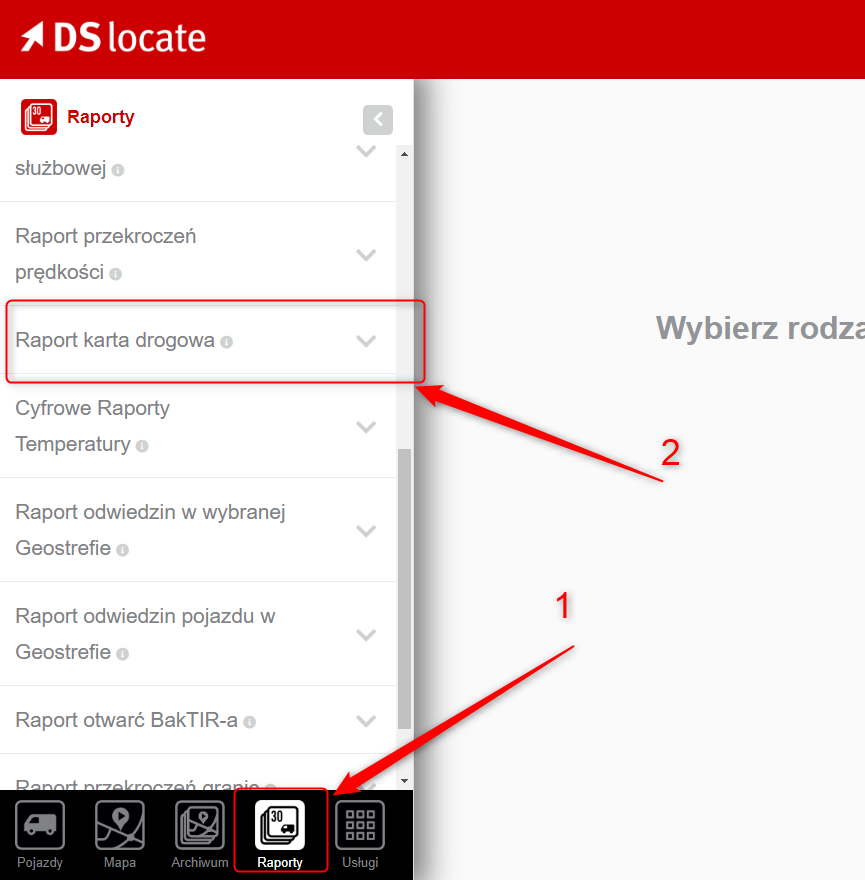
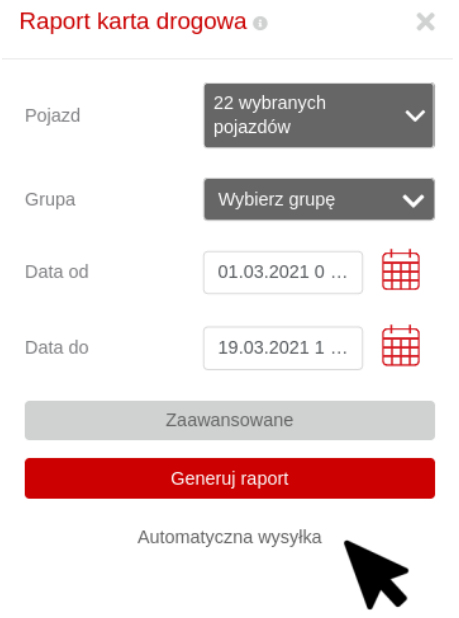
In the list of reports that appears on the left-hand side of the screen, you will find the mileage log report. To generate it, select the vehicles and date range you are interested in. It is also worth using the Advanced option, which allows you to enter company details and the name of the person responsible for maintaining the log. This will produce a more complete and professional report, perfectly tailored to your requirements.
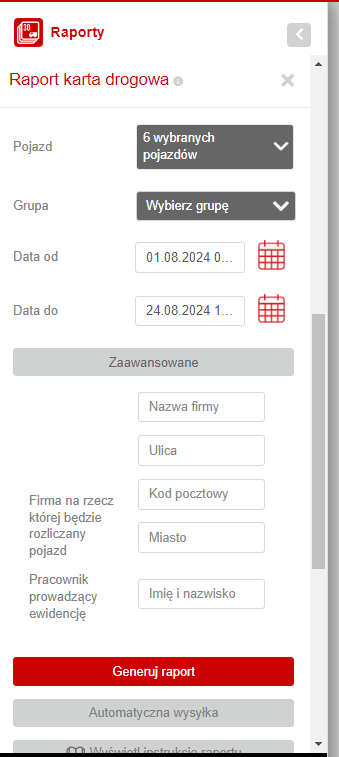
Now that you have everything ready, you can proceed to generate the report.
Using the buttons in the top right-hand corner of the screen, you can send the report directly to drivers, save it as a PDF, or print it. Once downloaded, the PDF file will include a field for the manual signature of the person responsible for maintaining the log. Additionally, after opening the PDF, you have the option to edit the Purpose and Driver fields. This feature is particularly useful in non-standard situations, when the journey purpose assigned to a driver does not match the actual purpose of the trip, or when the driver was not previously added in the Administration Panel.
At the bottom of the report you will also find summary statistics covering the entire reporting period, providing a quick overview of key data on vehicle mileage and operating costs.
Automatic report delivery
If you would like to receive reports regularly to your email inbox, you can make use of the Automatic Delivery function. Simply enter an email address and set the frequency at which you wish to receive reports, and our system will automatically generate and send them to the specified address.
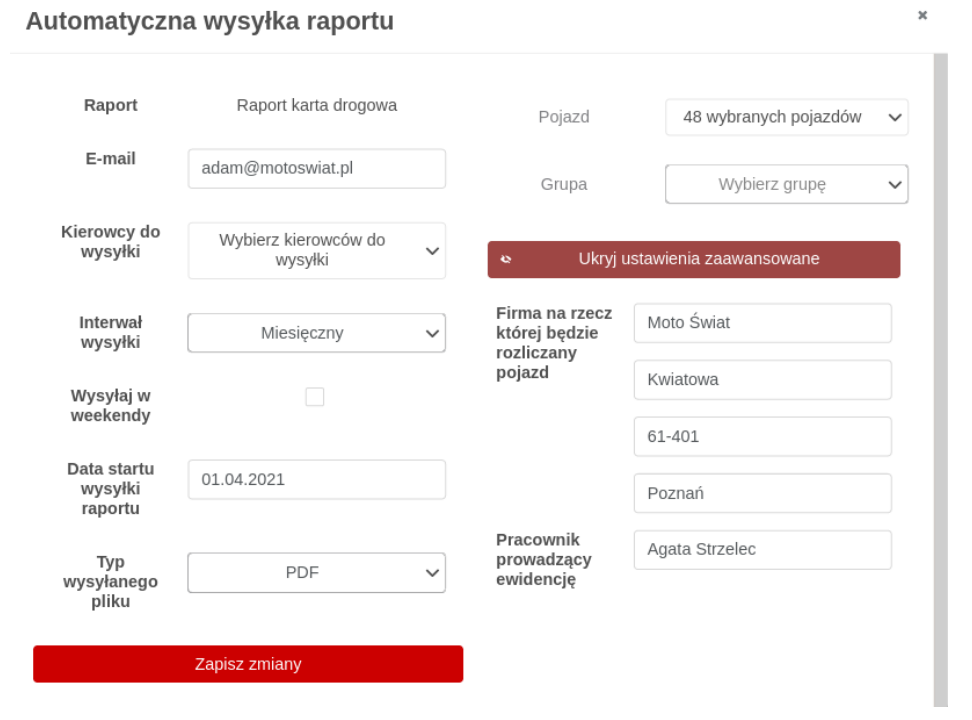
After clicking the Automatic Delivery button, a new window will open in which you can configure this feature. Enter the email address (or multiple addresses) to which the reports should be sent, then select the delivery interval — daily, weekly, or monthly. On the right-hand side of the panel, you can select the vehicles for which reports will be generated and enter the company details and the name of the person responsible for maintaining the log. This information only needs to be entered once — it will be automatically added to every report that is sent.
Delivery will continue until you decide to disable it. Additionally, you can set up any number of automatic deliveries for each report, allowing flexible management of reports and their distribution.
And… we have done it! Congratulations — you have mastered yet another useful DSLocate feature: the mileage log report.
DSLocate — more than just location tracking
The Mileage Log module is just one of the many capabilities our system offers. DSLocate is not merely a location tracking tool — above all, it is a comprehensive assistant that will help you manage your vehicle fleet in a more efficient, safer, and more cost-effective way.
We encourage you to try DSLocate and explore all of its possibilities. Contact our team for more information or to arrange an application demo.
In the upcoming articles in this series, we will take a closer look at other interesting DS Locate features that can significantly improve the management of your fleet. Stay tuned!
Are you looking for a trusted GPS and telematics system provider for your business? Get in touch with us today!