


- Shop
- About us
- DSLocate App
- Your industry
- FAQ
- Contact
-
Monitoring for
 sales representatives
 service technicians
 delivery drivers
 vehicle rental companies
 distributors
 construction machinery
 forklifts
 waste containers
 agricultural machinery
 trailers
 refrigerated vehicles
 municipal vehicles
 trucks
 buses
buses boats
boats people and objects
 theft protection
 mobile objects
Guide series | DSLocate – interesting and useful features you may not have known about | #2 Alerts

Managing a vehicle fleet is no small undertaking. Service schedules, technical condition checks, route monitoring — these are just some of the responsibilities that fall on the shoulders of transport and logistics company owners. Fortunately, DS Locate is here to help — a modern application that makes all of these tasks considerably easier.
Of course, the primary function of DS Locate is real-time vehicle tracking. But that is just the tip of the iceberg! The application offers many other, lesser-known but enormously useful features that can significantly streamline fleet management. In this series of blog articles, we will take a closer look at the untapped potential that lies within DS Locate.
In today's article, we will focus on the Alerts feature, which can prove to be a tremendous help in managing your vehicles.
Alerts — immediate response to unwanted events
How many times have you found out about a vehicle problem too late? With DS Locate, that is a thing of the past! The application lets you set up alerts that notify you instantly about unwanted events, such as speeding, leaving a designated area, or unauthorised use of a vehicle.
This allows you to respond quickly to potential risks, minimising hazards and increasing the safety of your fleet. Alerts also help with operational optimisation by enabling swift intervention and problem correction before issues become costly.
But how does it actually work?
Select the Services tab, then navigate to Alerts.
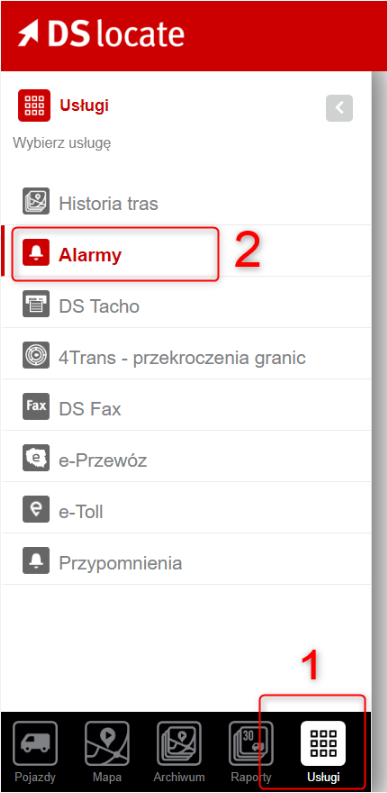
Once you open the relevant tab, you will see the current list of defined contacts, as well as the alerts currently configured and their status.
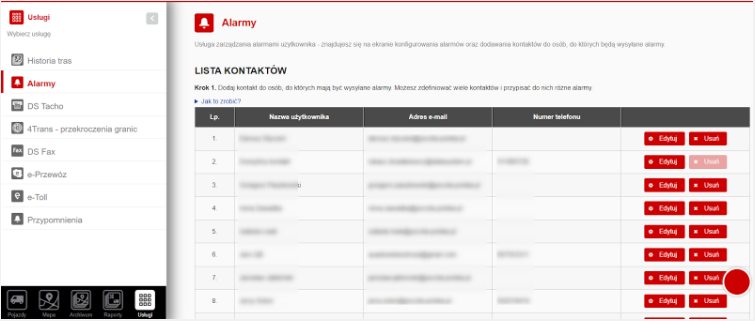
The contacts list is used to define the people who should receive individual alerts. In the next step — when you actually create an alert — you will draw from this list. It contains the following basic information:
- Full name
- Email address
- Phone number
- Options column — Delete or Edit contact
The full name and email address are mandatory fields. The phone number is optional and is used for SMS alerts.
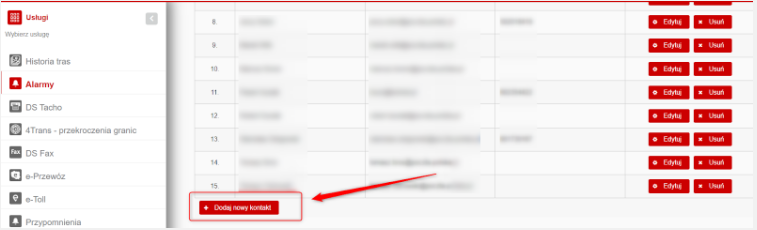
To add a new contact, simply click the “Add new contact” button. Simple, quick, and logical ?
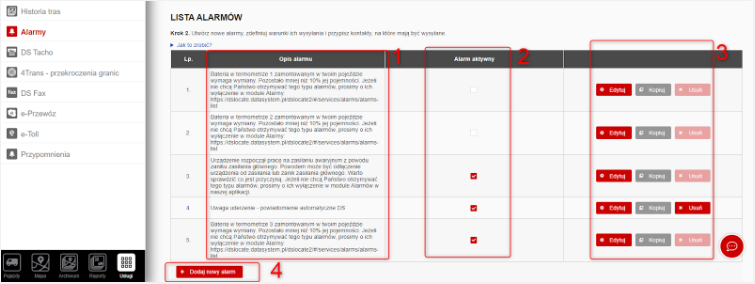
Below the contacts list you will find the Alerts list. Here you can see all current alerts. Let us go through the information displayed and what you can do with it.
- Alert description — a simple description of what the alert is for
- Alert active — in this column you can activate or deactivate individual alerts
- The last column is functional — you can delete, edit, or copy individual alerts.
- The “Add new alert” button — as the name suggests, click it when you want to create a new alert. And that is exactly what we will do now.
Let us get started! After clicking “Add new alert”, the following view appears (without the numbers, of course ?)
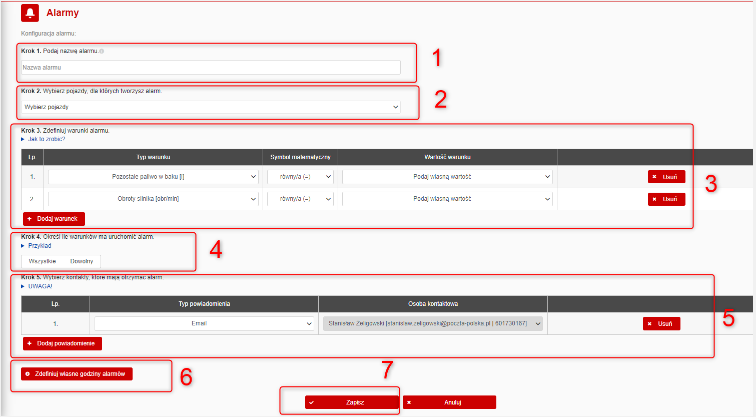
What do we need to do next? It is straightforward — simply fill in all the fields one by one:
- Give your alert a name
- Select the vehicles it should apply to
- This is the main point when setting up alerts — here you define which events will trigger the alert. There are a great many options available, from location and speed, to engine RPM, right through to the temperature reading from a thermometer. The conditions you are able to set depend on the transmitter and accessories you are using — for example, to set up an RPM notification you need a transmitter with a CAN bus connection. Let us pause here and look at exactly how the condition-adding menu works:

What now? It is simple — first select the condition type, then choose a mathematical operator — again there are several options, such as equals, greater than, not equal to, or contains — and finally enter the condition value. To make this clearer, let me use an example. We want to receive a notification when a driver exceeds 90 km/h. Our settings would therefore look like this:
Condition type — Speed exceeded, Operator — greater than, Value — 90.
Importantly, you can add several conditions and set up, for instance, an alert that only triggers when a speed of 90 km/h is exceeded in Germany. - In point 4, you choose whether all conditions must be met or just any one of them. If you select option 1, every condition you have added must be satisfied. With the 'any' option, it is sufficient for just one condition to be met.
- We are almost done — now it is time to select the contacts. Define who should receive the alert and in what form. You can choose from:
- SMS
- App — push notification on your mobile
- Define the hours — perhaps you want a particular alert to operate only at weekends? No problem, this is exactly where you configure that.
- And once again I emphasise the most important point — SAVE. If you forget, you will lose the alert you have just set up.
And that is how we have set up our first alert — congratulations!
The alerts module is an excellent tool that will help you manage your vehicles effectively, whether you have a single vehicle or an entire fleet. Take a little time to configure the alerts that interest you, and you will quickly see how much it simplifies your day-to-day work.
Alert personalisation — tailor the application to your needs
Every fleet is different, which is why DS Locate offers the ability to personalise alert settings. You can choose which types of events you wish to monitor, how frequently notifications should appear, and which communication channels (email, SMS, or app) they should be sent to.
This allows you to focus on the most important information and avoid an excess of notifications. You decide which information matters to you and how you wish to receive it.
DS Locate — more than just location tracking
The alerts feature is just one of the many capabilities our system offers. DS Locate is not merely a location tracking tool — above all, it is a comprehensive assistant that will help you manage your vehicle fleet in a more efficient, safer, and more cost-effective way.
We encourage you to try DS Locate and explore all of its possibilities. Contact our team for more information or to arrange an application demo.
In the upcoming articles in this series, we will take a closer look at other interesting DS Locate features that can significantly improve the management of your fleet. Stay tuned!
Are you looking for a trusted GPS and telematics system provider for your business? Get in touch with us today!