


- Shop
- About us
- DSLocate App
- Your industry
- FAQ
- Contact
-
Monitoring for
 sales representatives
 service technicians
 delivery drivers
 vehicle rental companies
 distributors
 construction machinery
 forklifts
 waste containers
 agricultural machinery
 trailers
 refrigerated vehicles
 municipal vehicles
 trucks
 buses
buses boats
boats people and objects
 theft protection
 mobile objects
Guide series | DSLocate – interesting and useful features you may not have known about | #6 Fuel monitoring

Managing a vehicle fleet is no small feat. Service intervals, technical inspections, driver hours monitoring – these are just some of the responsibilities that weigh on transport and logistics company owners. Fortunately, DSLocate – a modern application that makes these tasks considerably easier – is here to help.
Of course, the core function of DSLocate is real-time vehicle tracking. But that’s just the beginning! The application offers many other, lesser-known yet highly useful features that can significantly streamline fleet management. In this series of blog articles, we will explore how DSLocate can further optimise your operations.
In today’s article, we discuss the fuel monitoring feature – a solution that helps you effectively track fuel consumption and reduce operational costs.
Fuel monitoring – complete transparency over fuel use and operational costs
Fuel monitoring in DSLocate is an advanced and convenient tool that enables real-time tracking of fuel levels and consumption without the need to physically inspect each vehicle. DSLocate automatically records data on refuelling events, fuel burn, and low-fuel alerts, giving you better control over operational costs. This feature provides accurate visibility into both current and historical fuel consumption, enabling optimum fleet management and minimising unplanned expenditure.
What is more, DSLocate allows integration with fuel sensors and monitoring of additional driving parameters, supporting savings and enabling a faster response to irregularities or unexpected changes in fuel consumption. Automatic data synchronisation means you can monitor refuelling events and fuel levels continuously, without disruption and without involving drivers.
With DSLocate fuel monitoring, you save time, reduce operational costs, and lower the risk of misuse – leading to better route planning and improved fleet operational efficiency.
Components of the fuel monitoring feature
When we talk about fuel monitoring in DSLocate, we offer several different solutions depending on your needs and requirements.
- First, the basic solution: a CAN bus transmitter. This retrieves data from the vehicle’s onboard computer and, after appropriate processing, displays it in the application. You can then monitor the current fuel level, consumption, and view refuelling and fuel drain events.
- Going further, there is the fuel probe. A fuel probe is always fitted alongside a selected e-TOLL GPS tracker. It offers essentially the same functionality as the CAN bus transmitter, but differs significantly in measurement accuracy. The CAN transmitter simply reads data from the vehicle computer, which in turn reads from the float sensor – and is therefore subject to its errors, often producing readings that differ somewhat from actual values. The fuel probe, in this respect, is considerably more accurate. By being fitted directly inside the tank, with a very small margin of error, it is a far more precise solution, and the readings correspond fully with actual levels.
- BakTir – this is simply an additional security measure. It is fitted in place of the original fuel filler cap. This allows you to have full control over when and where the fuel filler was opened.
But how does it actually work?
Main screen
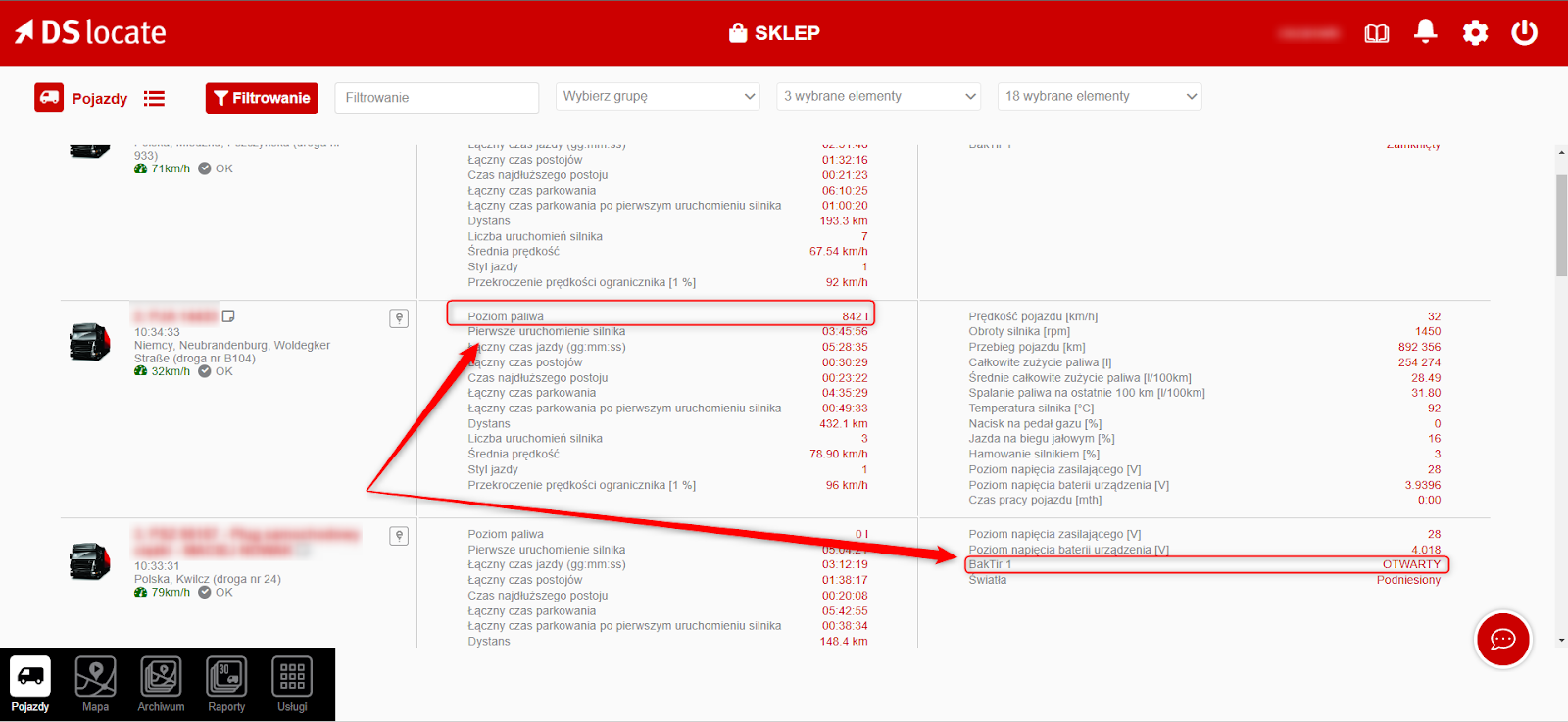
Your fuel monitoring experience begins on the main screen. Here, in the statistics panel, you can check two basic parameters: the current fuel level for a given vehicle, and the BakTir open/closed status, provided one is fitted to the vehicle.
Reports – average fuel consumption ranking
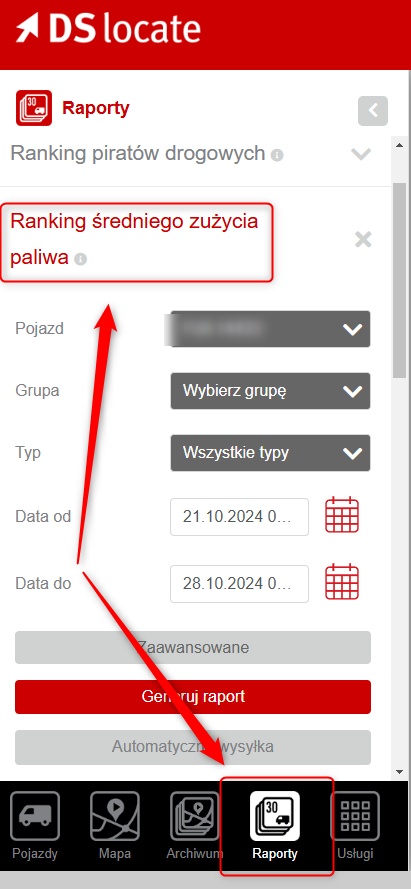
When it comes to fuel monitoring, reports are arguably the most important element. Let’s start with the average fuel consumption ranking. To open it, select the “Reports” tab at the bottom of the screen and navigate to the report of that name. Choose which vehicles you want the system to generate a report for, and set the date range. Then generate the report.
Tip
Here you can also set up automatic report delivery – the report will then be generated and sent to a specified email address at selected intervals.
The report itself looks as follows:
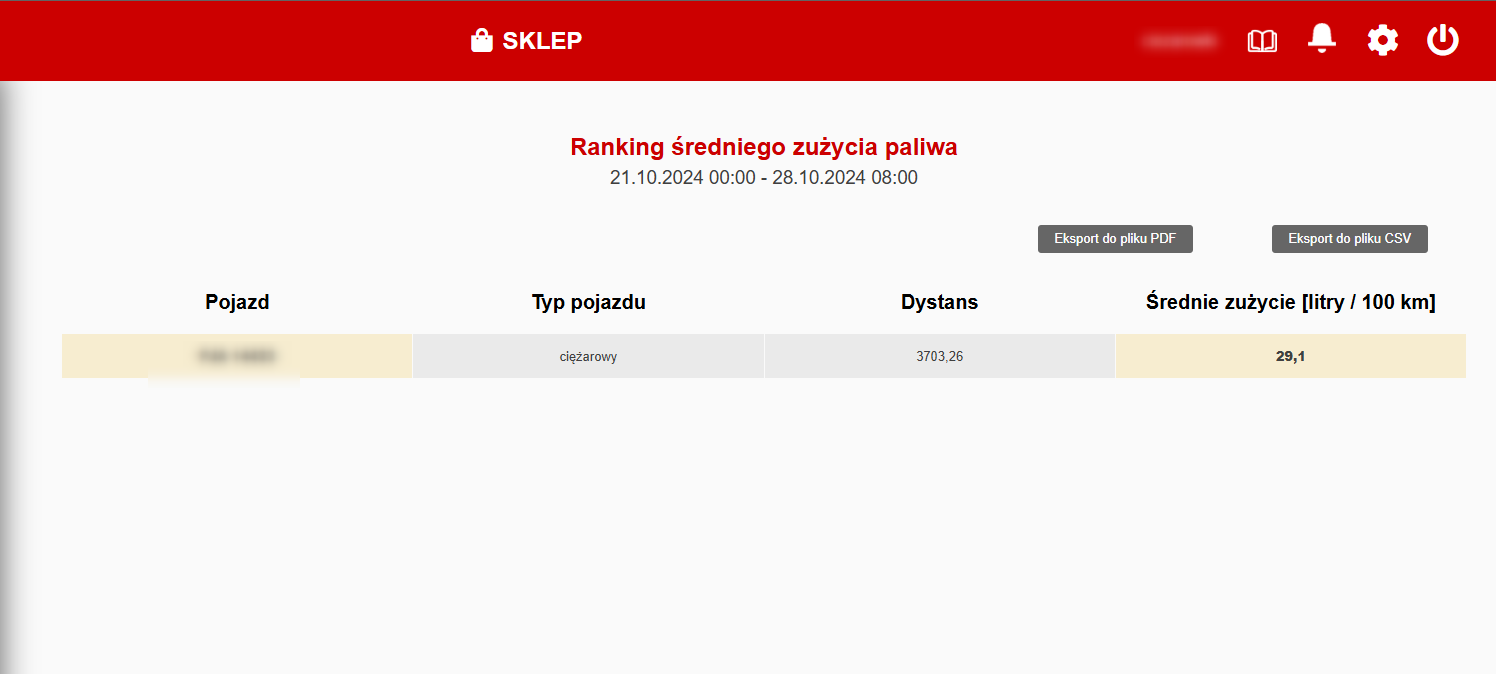
This is a straightforward report showing the distance covered in a given period and the average fuel consumption.
Reports – vehicle fuel report
Go back to the Reports tab, but this time select the vehicle fuel report. After selecting the vehicles of interest and setting the date range, generate the report.
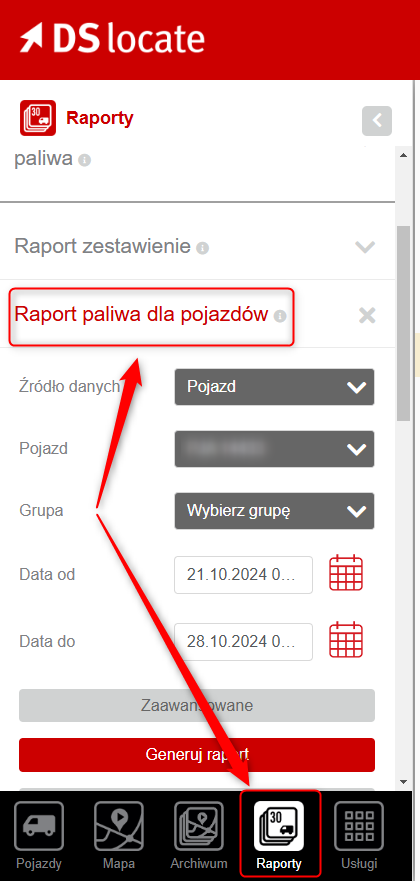
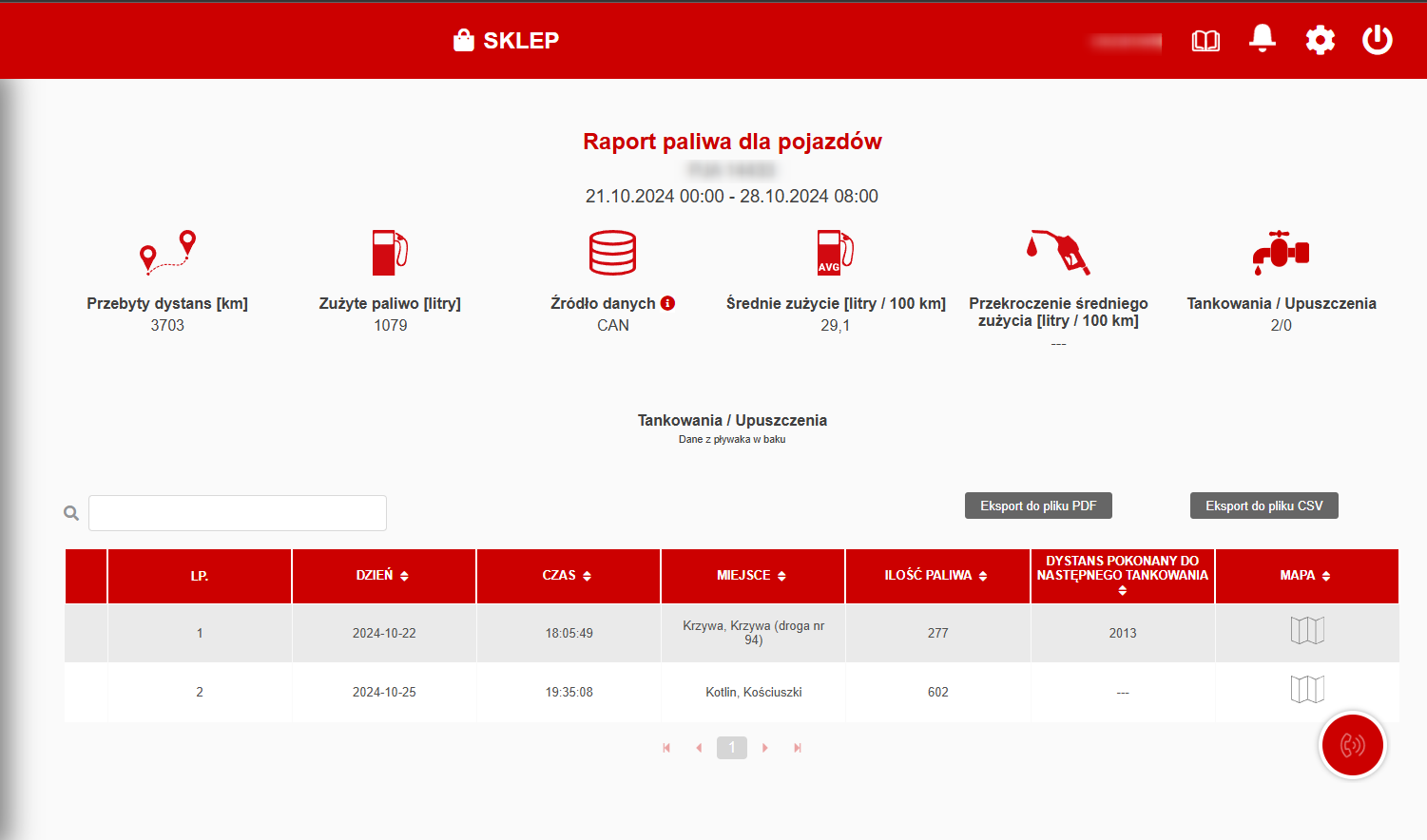
In this report you can check all refuelling and fuel drain events for the vehicle. It also shows a summary of distance travelled, fuel consumption, and average consumption – importantly, this summary only appears when a single vehicle is selected. If multiple vehicles are selected, only refuelling and drain events will be visible.
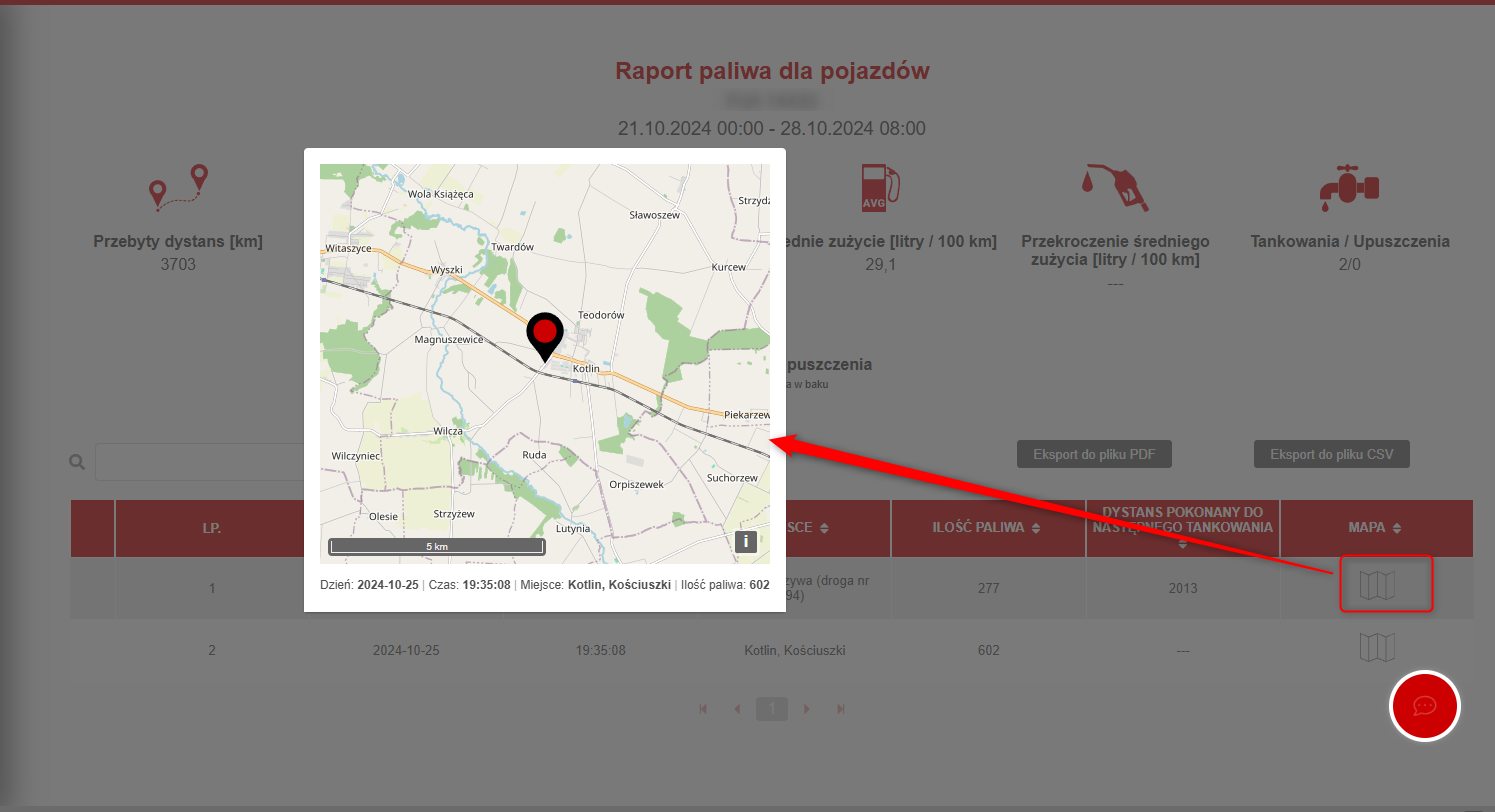
This report also contains one more useful feature: the map. By clicking the map icon on the right, you can check exactly where a refuelling or fuel drain event took place.
Reports – BakTir openings
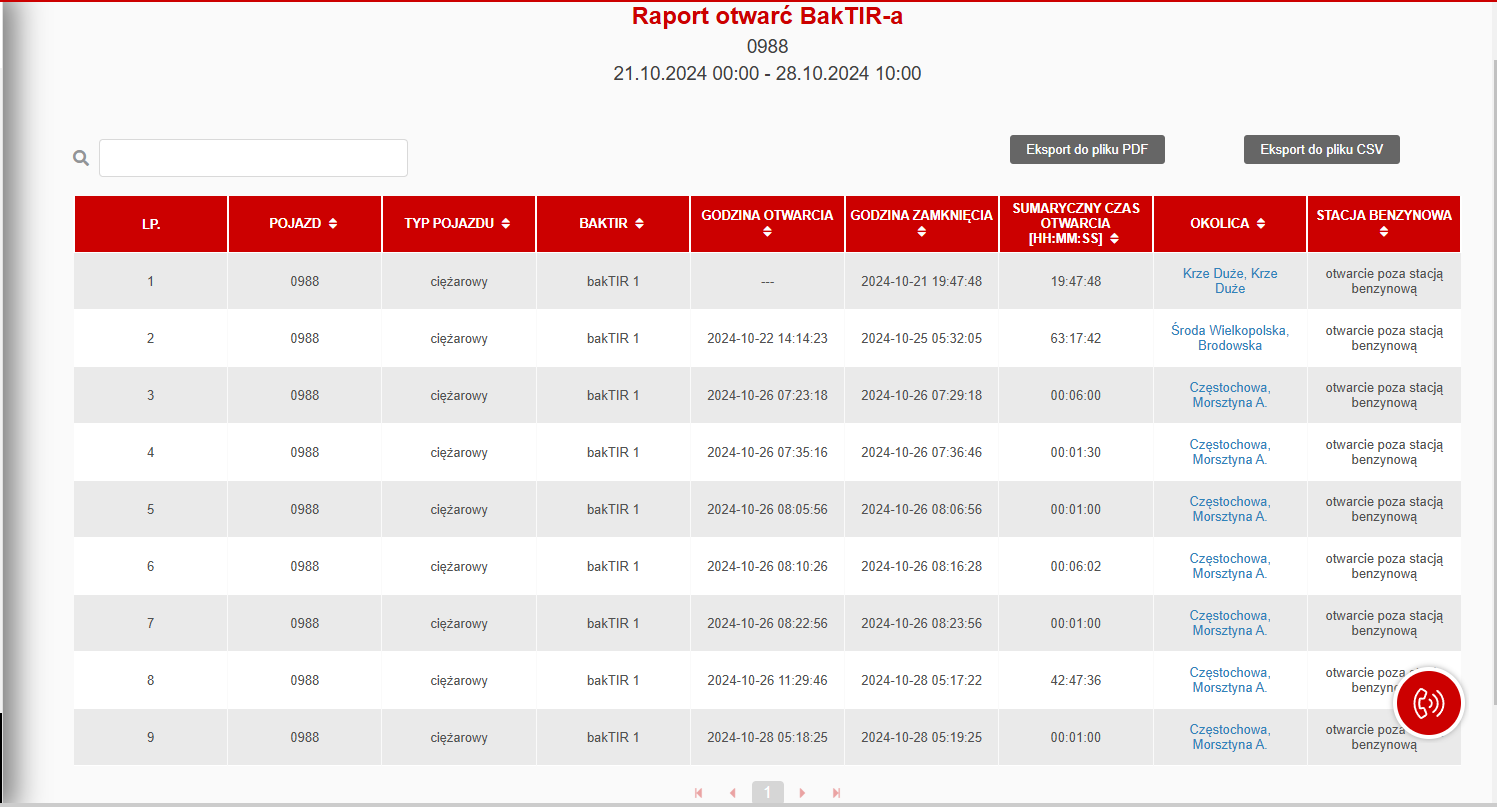
Last up is the BakTir report. This only appears if BakTir units are installed on your vehicles. The procedure for opening it is identical to the previous reports.
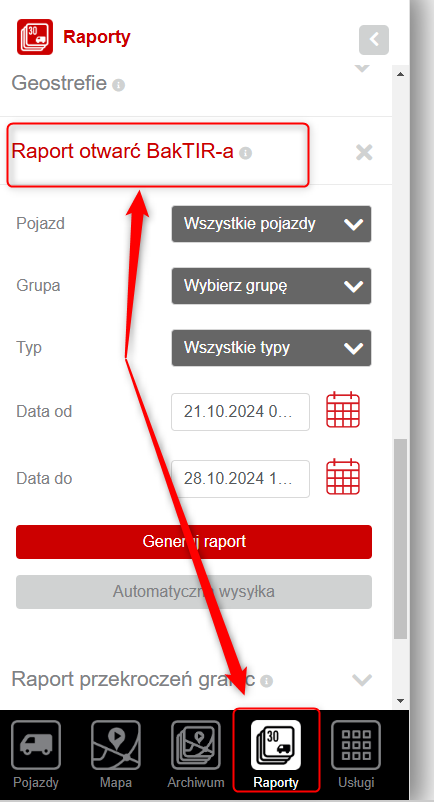
This report shows all BakTir opening events. It gives the exact date and time of each opening and closing, as well as the total duration the cap remained open. You can also check the exact location where this occurred (simply click any place name in the “Vicinity” column). It also instantly indicates whether the opening took place at a petrol station or elsewhere.
Alerts
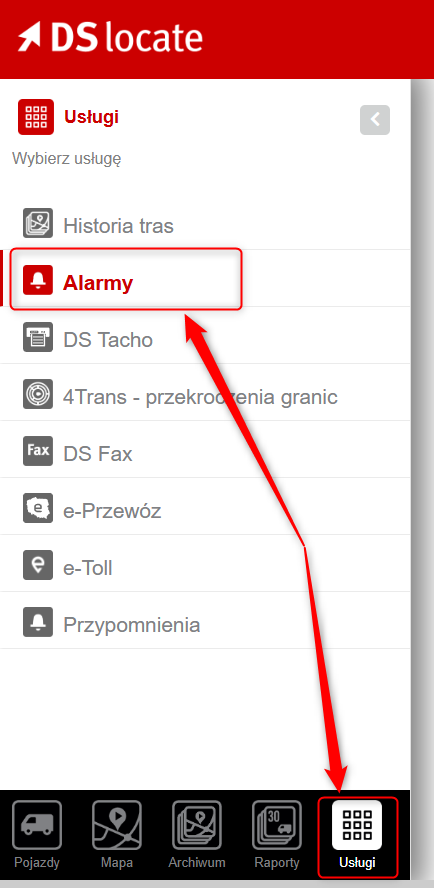
Last but not least: alerts. This time, switch tabs – at the bottom of the screen, tap “Services” and then go to Alerts. Scroll to the very bottom and tap “Add new alert”.
You will be taken to the new alert creation screen. There are many different options here, but today we will focus on two.
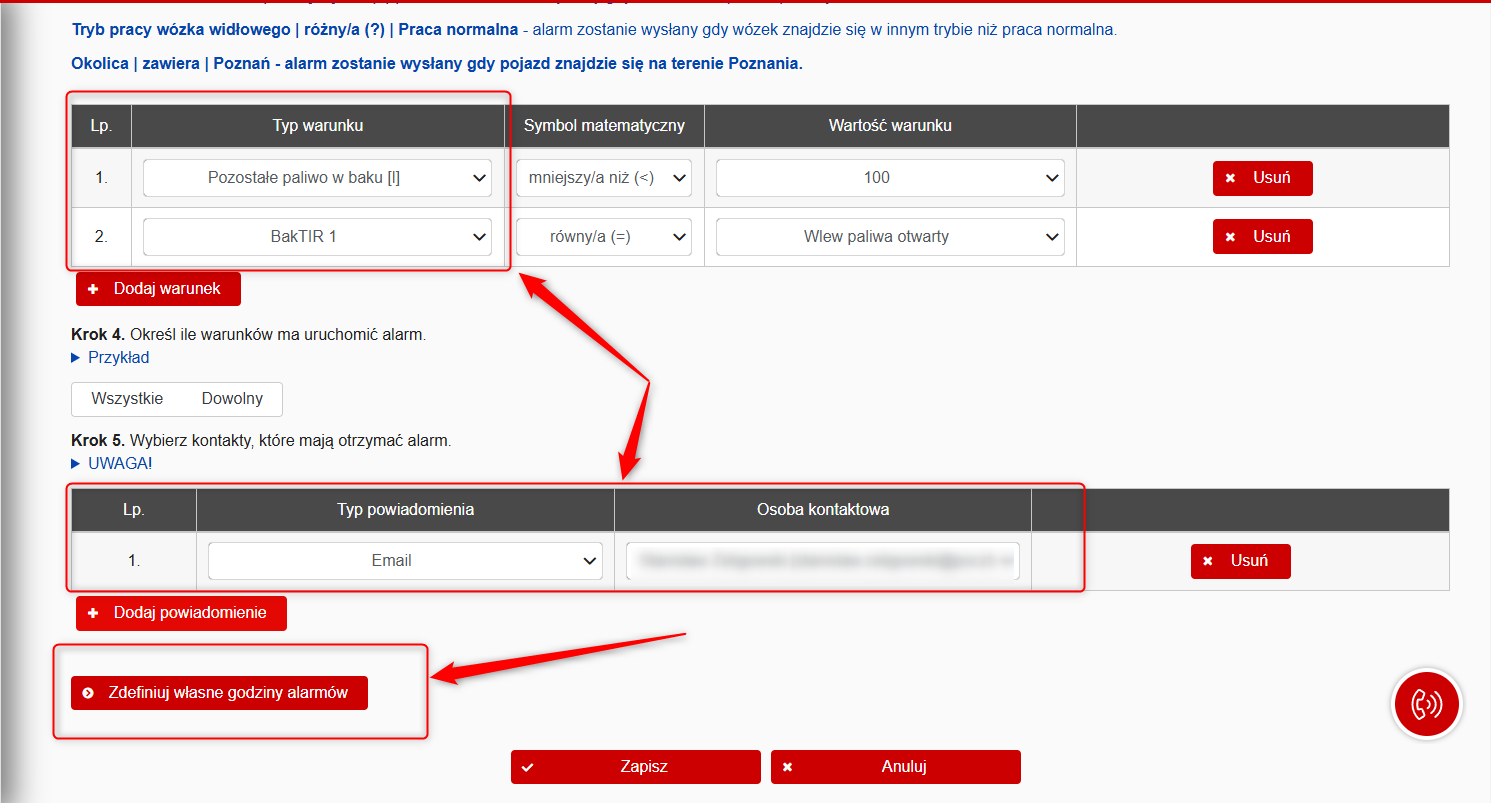
1. The first alert is “Remaining fuel in tank”. A simple alert that you can configure to trigger when fuel drops below, or rises above, a set threshold. To set this alert, simply select it from the list, set the condition, and enter the threshold of your choice.
2. The second alert is BakTir. This is a simple alert that will notify you whenever a BakTir cap is opened.
Once you have selected your alerts, you can proceed. You need to choose whether the alert should trigger when any one condition is met, or all conditions simultaneously (multiple conditions can be configured. For example, if your vehicles are only refuelled at your own depot, it is worth setting a BakTir opening alert for locations outside that site).
Next, select the alert type – this can be email, SMS, or an in-app notification.
There is also an option to set custom alert hours (alerts will not be triggered outside these times). Finally, save the new alert.
DSLocate – more than just location tracking
The fuel monitoring module is just one of the many advanced features our system has to offer. DSLocate is not merely a vehicle tracking tool – it is above all a comprehensive assistant supporting you in efficient, safe, and compliant fleet management. Features such as fuel monitoring help you cut operational costs, minimise the risk of misuse, and optimise routes, translating into better planning and improved fleet performance.
Looking for a proven GPS and telematics system provider for your business? Get in touch with us now!